If you already have ChatGPT open while you’re writing captions, you can bring your actual Bolta content calendar into that conversation. See what’s scheduled this week, turn one business update into drafts for different channels, and save them without publishing anything.
Below I’ll show you how to connect Bolta, pin your calendar on desktop, and try it with one update from your business.
What Is the Bolta ChatGPT Plugin?
Bolta for Social Media is the app that connects ChatGPT to your Bolta workspace. You’ll find it in the ChatGPT plugin directory. When you connect it, you choose which brands ChatGPT can access.
Instead of using ChatGPT exclusively to generate social media ideas, you can use it to perform actual content management tasks.
This includes reviewing scheduled content, creating drafts, preparing marketing campaigns, managing content approvals, scheduling posts, and reviewing social media performance.
Everything happens within your connected Bolta workspace, so your team can continue working from the same content calendar and publishing workflows.
How to Connect ChatGPT to Social Media With Bolta
Connecting your social media accounts to ChatGPT through Bolta is straightforward. You do not need to build your own integration or write code.
Step 1: Create your Bolta account
Visit Bolta.ai and create your account if you do not already have one.
Connect the social media profiles you want to manage and set up your brand workspace.
You can also configure your brand voice, business information, and content preferences to help Bolta understand how your business communicates.
Step 2: Install the Bolta ChatGPT plugin
Open the Bolta for Social Media plugin in the ChatGPT Plugins directory.
Choose Install or Connect, sign in to Bolta, and select the brands you want ChatGPT to access. If you get stuck, follow the Bolta setup guide for ChatGPT.
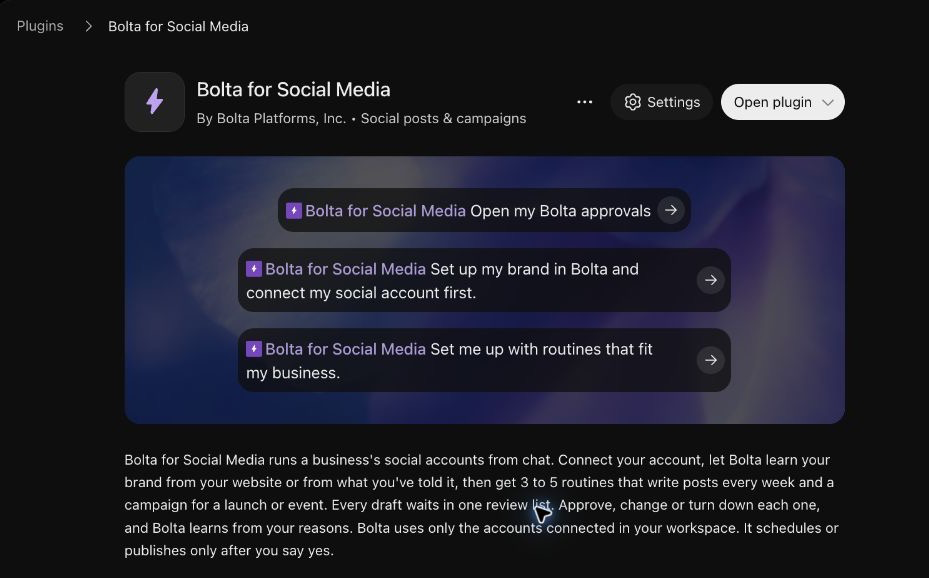
The listing may say “Open plugin” once Bolta is connected.
The plugin’s availability may depend on your ChatGPT account, workspace permissions, region, and applicable subscription requirements.
Step 3: Start a conversation
Open a new ChatGPT conversation, type **@**, then select Bolta for Social Media.
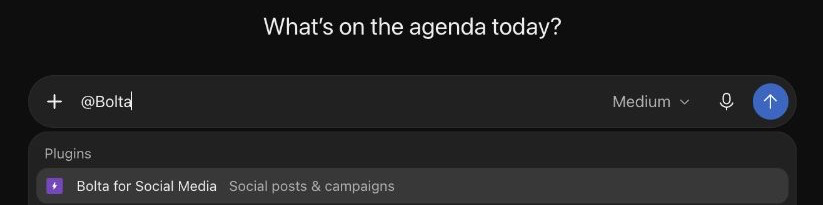
Start with a simple request:
Show me my connected social media accounts and everything scheduled in my content calendar this week.
ChatGPT can retrieve information from your Bolta workspace and display your upcoming content.
You should see the accounts and posts from the Bolta brand you selected.
Optional: Pin Bolta on desktop
Open the … menu in the ChatGPT desktop sidebar and find Open Bolta.
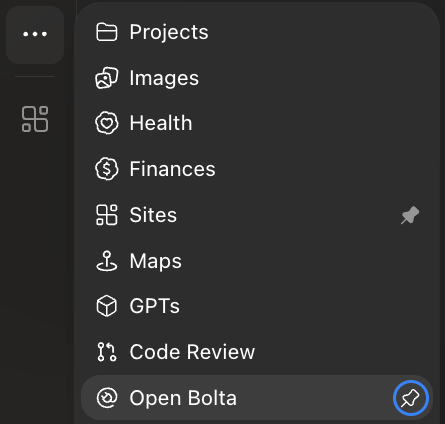
Click the pin next to Open Bolta. The filled pin shows that it’s pinned.
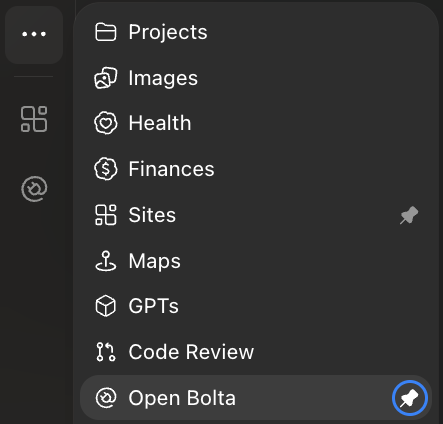
Open Bolta from the sidebar and choose Calendar. If your sidebar looks different, use @Bolta in a new chat and ask what’s scheduled this week.
Your Social Media Content Calendar Inside ChatGPT
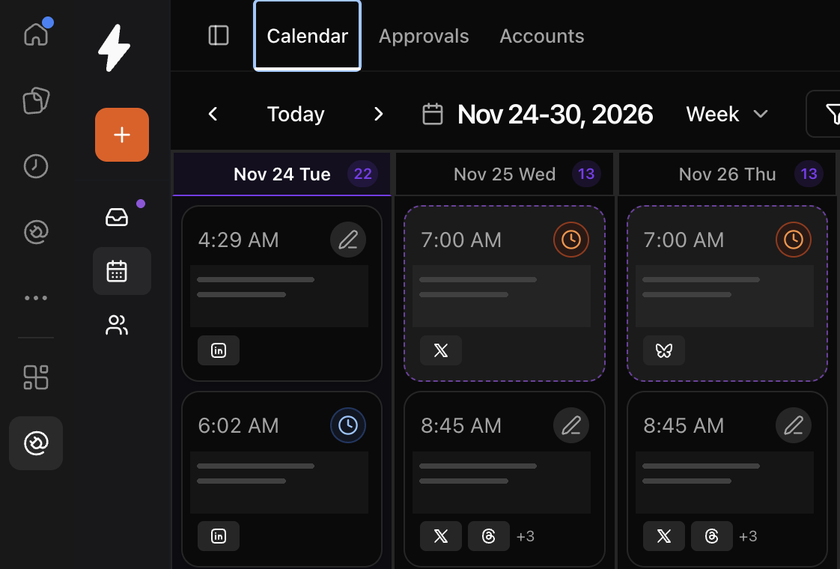
Start by checking your calendar before making anything new. A quick look at what’s already scheduled tells you whether to fill a gap or leave the week alone.
Try it with one update
Say your business is extending Saturday pickup hours. Ask Bolta:
Show me what’s scheduled in Bolta this week. Then turn this update into one LinkedIn post and one Threads post in our brand voice: we’re extending Saturday pickup to 2 p.m. Save both as drafts in Bolta. Don’t schedule or publish them.
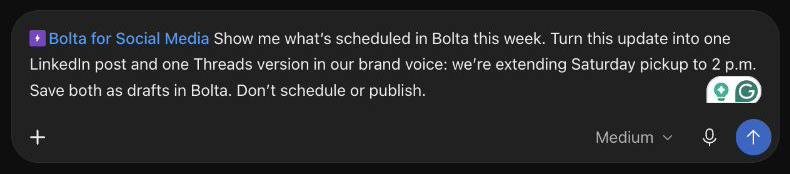
Swap in something your customers actually need to know: a new product, a change in hours, or an event. If you’ve only connected one social account, ask for that version first. Check that the draft is in the right brand and that the details are correct before asking Bolta to schedule it.
A social media calendar on your phone
If Bolta is available in your ChatGPT mobile app and your workspace is connected, ask what’s scheduled this week to check your calendar from your phone. The pinning screenshots above show the desktop app, so the menus can look different on mobile.
Which Social Media Platforms Can ChatGPT Post To With Bolta?
Bolta supports publishing across multiple social media platforms and content channels, including:
- X (formerly Twitter)
- Threads
- Bluesky
- TikTok
- YouTube
- Mastodon
- WordPress (for articles)
Available publishing options depend on your connected accounts, permissions, subscription, and the content formats supported by each platform.
For example, an Instagram post may need a photo or video, while a LinkedIn text post can start with a caption. Check the supported channels and formats before planning a post for an unfamiliar channel.
WordPress integration also allows you to create and publish long-form blog articles from your connected workflow.
Connect your accounts in Bolta once, then specify which account or platform you want to work with inside ChatGPT.
What Can You Do With the Bolta ChatGPT Plugin?
1. Create social media content in your brand voice
Generic AI-generated content can make different businesses sound exactly the same.
Bolta uses your saved brand voice, business information, writing preferences, and content feedback to help create posts that reflect your business.
You can ask ChatGPT to retrieve your brand voice before developing content.
Try this prompt:
Review my Bolta brand voice and write three LinkedIn posts about a common problem my customers experience. Keep the writing conversational and avoid generic marketing language. Save them as drafts.
The drafts become part of your Bolta workspace, where you can review and refine them.
2. Schedule and publish social media posts
You can use Bolta as a ChatGPT social media scheduler.
Create content during a conversation and request that it be scheduled for a specific date and time.
For example:
Create a Facebook post announcing our new opening hours and a shorter Instagram version. Show me both drafts before scheduling them for Friday at 10 a.m.
Once the content is approved and scheduled, Bolta handles publishing according to your account settings.
You do not need to keep the ChatGPT conversation open for scheduled content to go out.
3. Repurpose content across multiple platforms
A LinkedIn post should not necessarily look like an Instagram caption, and a Threads post should not read like a formal company announcement.
Bolta helps you adapt a single idea into platform-specific content.
Try:
Turn this announcement into one LinkedIn post, one Facebook post, three short Threads posts, and two X posts. Keep the same message but adapt the writing to each platform. Save everything as drafts.
This is especially useful for founders, marketing teams, and creators managing several social media channels.
4. Manage social media approvals
Not every AI-generated post should be published automatically.
Businesses need control over brand messaging, customer communications, announcements, and sensitive content.
With Bolta’s social media approval workflow, you can prepare drafts and review them before publication.
You can also work with existing review requirements in your Bolta workspace.
Try:
Show me the social media posts waiting for approval. Organize them by platform and include the full caption so I can review each one.
This makes AI-assisted social media management more practical for teams and agencies that require human oversight.
5. Build recurring content routines
Social media management is not a one-time project. Businesses need to create and distribute content consistently.
Bolta routines help automate recurring content tasks according to your instructions.
For example, you could request:
Create a weekly content routine that prepares three LinkedIn posts every Monday using my brand voice and business information. Keep the drafts waiting for my approval.
Or:
Create a recurring workflow that turns new blog articles into social media posts for LinkedIn, Facebook, and Threads.
Once configured and activated, supported Bolta routines can continue running without requiring you to repeat the same prompt every week.
6. Plan social media marketing campaigns
If you are preparing for a product launch, holiday promotion, company announcement, or seasonal offer, you can use ChatGPT to plan a campaign connected to Bolta.
For example:
Help me create a two-week social media campaign for our upcoming product launch. Include educational posts, product awareness, customer benefits, and promotional content. Show me the campaign plan before activating it.
Bolta campaigns help organize content around a specific marketing objective and time frame.
Instead of generating disconnected posts, you can build a coordinated content plan.
7. Review social media analytics
You can also use ChatGPT to explore available social media performance data from Bolta.
Rather than opening multiple dashboards and manually comparing results, start with a question:
Show me my best-performing social media posts from the last 30 days. Identify common topics, formats, and writing styles among the top posts.
Follow up with:
Based on those results, suggest five content ideas for next week.
Available metrics depend on the connected social networks and their reporting capabilities.
This creates a more connected workflow between content performance and future content creation.
8. Publish blog articles to WordPress
Social media is only one part of content distribution.
With a supported WordPress site connected, you can also prepare WordPress drafts from ChatGPT and review them before publishing.
You can prepare an SEO-focused article, include headings and source links, define its URL slug, and provide search metadata.
For example:
Write an SEO article answering the most common questions our customers ask. Include relevant sources and internal links. Save it as a WordPress draft for review.
Once your article is ready, you can repurpose it into content for your connected social media channels.
10 Prompts to Try With the Bolta ChatGPT Plugin
Not sure where to start? Copy one of these prompts into ChatGPT after connecting Bolta.
Content planning
Show me my content calendar for the next 14 days and identify gaps in my publishing schedule.
Social media scheduling
Schedule my approved LinkedIn posts for next week.
Brand voice
Review my saved brand voice and rewrite this caption to sound more like my business.
Content repurposing
Turn this blog article into five social media posts for different platforms.
Content approvals
Show me everything waiting for approval in my Bolta workspace.
Marketing campaigns
Plan a two-week social media campaign for our upcoming seasonal promotion.
Social media analytics
Show me my best-performing posts from the last 30 days and explain what they have in common.
Recurring content creation
Help me set up a weekly routine that creates five social media drafts for review.
WordPress publishing
Prepare an SEO-friendly blog article and save it to my connected WordPress website as a draft.
Content strategy
Review my recent content and suggest three improvements to my social media strategy.
ChatGPT Alone vs. ChatGPT With Bolta
ChatGPT is a powerful tool for generating ideas, developing marketing strategies, and writing social media content.
However, writing content is only one part of managing social media.
With Bolta connected, ChatGPT can also interact with your actual content management workspace.
Without Bolta:
- Generate captions and content ideas.
- Create hypothetical content calendars.
- Develop marketing strategies.
- Manually transfer content into a publishing platform.
- Provide performance data manually for analysis.
With Bolta:
- Access your connected social media accounts.
- Review your actual content calendar.
- Save content drafts directly to your workspace.
- Schedule and publish approved content.
- Use your existing brand voice.
- Work with content approvals and recurring routines.
- Review available social media performance data.
Bolta connects the conversation to the tools responsible for executing your social media strategy.
Who Should Use Bolta for ChatGPT?
Small business owners
If you do not have a dedicated marketing department, Bolta can help reduce the manual work involved in maintaining an active social media presence.
Social media managers
Manage content planning, drafts, approvals, and performance analysis without constantly switching between different applications.
Marketing agencies
Work with connected client brands, prepare platform-specific content, and maintain established approval workflows.
Content creators
Turn ideas into social posts, organize your publishing schedule, and repurpose existing content across multiple platforms.
Startup founders
Share product updates, build your personal brand, communicate with customers, and develop consistent marketing routines while focusing on growing your business.
How to Troubleshoot the Bolta ChatGPT Plugin
My connected social media accounts are not showing
Check that your social media profiles are connected in Bolta and that ChatGPT has access to the correct brand workspace.
Then ask ChatGPT to list your connected accounts again.
My post has not been published
Submitting content for publication does not always mean it is immediately live.
Ask ChatGPT to check the post’s current publication status. It may be queued, scheduled for later, waiting for approval, or experiencing a publishing error.
My content does not sound like my brand
Review your saved brand voice and provide specific feedback on the generated content.
The more clearly you define your preferred tone, vocabulary, audience, and writing style, the more useful your content workflows can become.
ChatGPT cannot publish my post
Check your connected account permissions, workspace approval requirements, and media requirements for the selected social network.
Some actions may also depend on your subscription and connection permissions.
Frequently Asked Questions
Can ChatGPT post directly to social media?
Yes. Through a connected plugin such as Bolta for Social Media, ChatGPT can submit supported content for scheduling or publication to connected social media accounts.
Is Bolta a ChatGPT plugin for social media management?
Yes. Bolta for Social Media is available through the ChatGPT Plugins directory and connects ChatGPT to your Bolta workspace.
Can I see my social media calendar inside ChatGPT?
Yes. The Bolta plugin allows you to access your actual content calendar and review upcoming social media content from within ChatGPT.
Does the Bolta plugin work on the ChatGPT mobile app?
If Bolta is available on your ChatGPT account and you’ve connected your workspace, you can ask to see what’s scheduled in the ChatGPT mobile app. Menu layouts may differ from desktop.
Can ChatGPT schedule Instagram and Facebook posts?
Yes. With eligible Instagram and Facebook accounts connected to Bolta, ChatGPT can help prepare and schedule supported content formats.
Does ChatGPT need my social media passwords?
You connect your social media accounts through Bolta’s account connection process. You should not need to provide your social media passwords directly inside a ChatGPT conversation.
Can I approve content before ChatGPT publishes it?
Yes. Bolta supports content review and approval workflows. You can also explicitly ask ChatGPT to show you drafts and wait for your approval before taking further action.
Does ChatGPT need to remain open for scheduled posts?
No. Once a post is successfully scheduled in Bolta, its publishing workflow is handled independently of your open ChatGPT conversation.
How much does the Bolta ChatGPT plugin cost?
Visit Bolta’s pricing page for current subscription options. Available functionality may depend on your Bolta subscription, ChatGPT account, and connection permissions.
Can someone manage my social media for me instead?
Yes. If you prefer to outsource your content creation and social media management entirely, explore Bolta’s done-for-you managed social media services.
Stop Copying Captions Between Apps
AI should help you complete your work, not create another place where unfinished work accumulates.
With Bolta connected to ChatGPT, you can move from an idea to a content draft, from a draft to an approved post, and from an approved post to scheduled content.
Your brand voice, social media accounts, content calendar, and publishing workflows remain connected.
Start with one post, one conversation, and one less application to switch between.