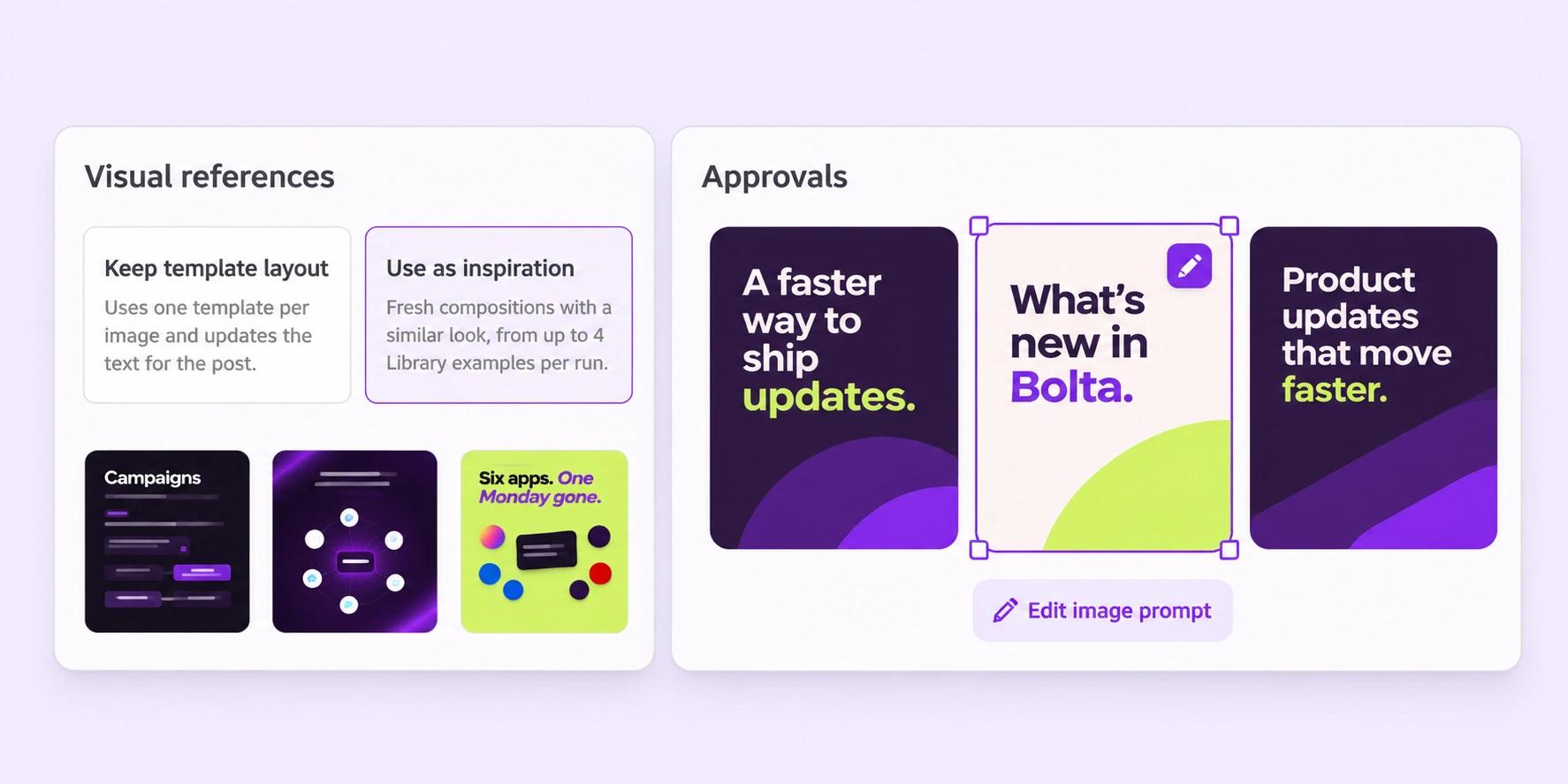
You’ve got a weekly routine that writes the posts you want. The images are another story. Some look too similar to last week’s, and the carousel you’re ready to send back has one slide with a headline that’s hard to read. Those are two different jobs. One belongs in the routine’s settings. The other belongs on the draft in front of you.
This update covers November 16–22, 2026. Here’s how to guide the visuals for future routine posts and adjust just one image while reviewing a draft.
Choose how your routine uses visual references
In the Routine Editor, choose Image, then open Visual references. Pick Keep template layout to use an existing post template, or Use as inspiration for fresh compositions guided by examples from your Media Library. If the routine already has saved looks or a pinned image, switching to Use as inspiration replaces them when you save.
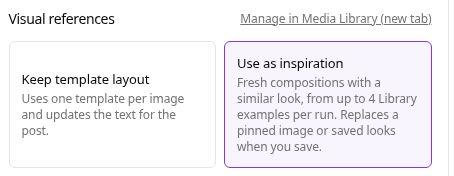
Visual references in the Bolta Routine Editor.
If you’re editing an existing routine that still shows Saved looks, those controls apply to that routine. On a new routine with Visual references, use the two options above instead of looking for Add look.
Revise one image while reviewing a draft
The images in a thread or carousel often go through review at different speeds. Your opening image might be ready while slide two needs a shorter headline or a clearer crop. In Approvals, you can select the image that needs work, preview a change, and apply it to that attachment. The other images, captions, and slide or thread order stay in place.
Take a three-slide carousel about caring for a handmade cup. Slide one introduces the cup. Slide two has care instructions, but the headline competes with the illustration. Slide three has the closing image and is ready. You can shorten the second slide’s headline and keep the rest of the draft as it is.
- Open the draft in Approvals and move to the image, carousel slide, or thread attachment you want to revise.
- Choose Edit image prompt if it’s available for the selected image. State the change and the part of the original you want to keep. For example, “Use the same cup and plum background. Move the cup toward the lower right and leave room for a headline above it.”
- If the image editor offers a headline override for that carousel slide, enter the exact words you’d like rendered. For the example above, try “Care for your cup” and inspect the preview for spelling, contrast, and legibility. The override changes the rendered image. The original slide direction stays available as context.
- Choose Regenerate preview, review the result, and apply it if it’s ready. Then read the full post once more so the new image, its neighbors, and the caption still tell the same story. Complete any review the final version requires.
A visual fix in Approvals is for the draft you’re reviewing. If the same problem returns in several drafts, update the routine’s visual direction as well. For example, a one-off headline can be corrected on the slide. If every headline feels cramped, update the routine’s direction to leave consistent space for text. That gives the next run a better starting point.
Try it on a routine you already use. Check its visual settings, then open your next batch and choose one image to review in context. For the release note and other changes, see the November 18 changelog entry.