
A post can do well with your audience and still take too long to get through review. A weekly routine can produce drafts on time while half of them wait for a decision. Both look like a content problem from a distance. They call for very different fixes.
This Bolta Product Update covers November 13 through 21. Expanded Insights helps you trace what worked and where publishing slowed down. Client Reviews keeps revisions and decisions with the post. And the ChatGPT plugin gives you a way to turn a conversation into work your team can pick up in Bolta.
Insights
Open Insights in Bolta and start in Overview. The account picker, date range, grouping, and breakdown answer different questions. The account picker controls whose performance you see. The date range sets the window. Grouping lets you look day by day or zoom out to a week or month. Breakdown can show which platform or account contributed to the overall trend.
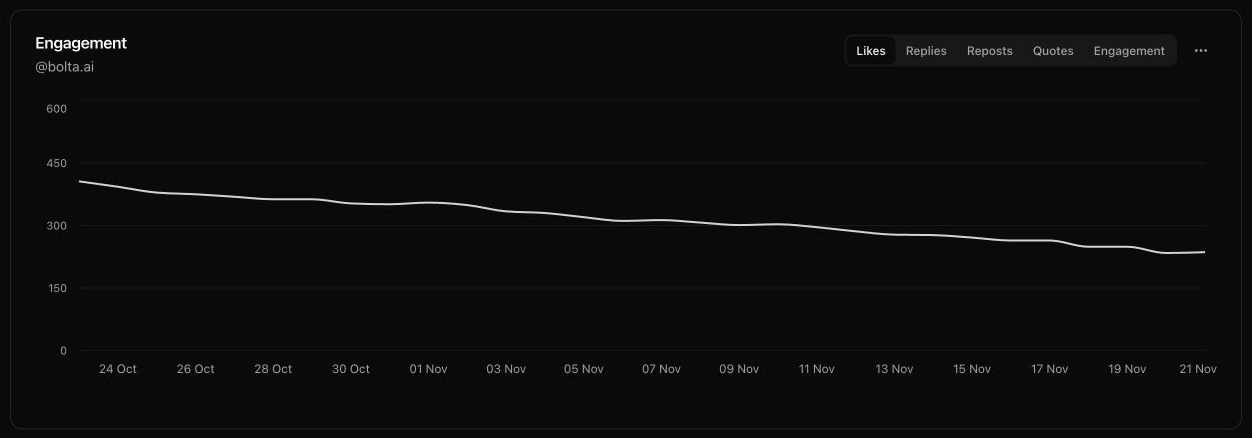
The Insights trend chart on Bolta’s Threads account. Switch metrics to see how people responded.
Find the posts behind a change. Say overall engagement improved and you want to know whether LinkedIn had a better week or one Instagram Reel drove the lift.
- Set a date range that covers the change and start with All accounts.
- Choose Platform in the breakdown. If one platform stands out, narrow the view to those accounts or compare the individual accounts you’re interested in.
- Switch the metric to match the question. Replies can be more informative than likes if you’re trying to start conversations. Metric choices and coverage vary by platform.
- Open Content, then Posts. Use the account and date filters, sort the results, and open the individual posts that explain the change. Look at what those posts had in common before changing the content plan.
Keep posting volume in mind. If you published twice as often, a rise in total engagement describes a different result than getting more engagement from the same number of posts. When a series has sparse data, review the individual posts alongside the chart. This is also handy when accounts report different metrics. Compare what’s available on the channels you picked.
Find the step that slowed a post down. In Team, publishing activity, approval trends, the publishing funnel, and top failure reasons give you a view of the work before it reaches the audience. Posts can be waiting on the team, waiting on a client, blocked for a fix, scheduled, or already attempted by the publisher. Those states point to different actions. A client sign-off needs a decision. A disconnected account needs a reconnect. An unsupported media error needs a format the destination can publish.
A destination-level delivery rate answers how many attempted sends actually went out. For example, if one post publishes to LinkedIn and fails on Instagram, you have one successful send out of two attempts. The post-level view answers a different question about where the post as a whole ended up. Check which account failed before retrying so the channel that already received the post keeps its single copy.
See whether a routine or campaign is producing usable work. In Automations, you can see what a routine or campaign generated, what made it out, and where unpublished posts are sitting. Say a weekly LinkedIn routine is producing drafts on time and most are waiting on your team. Give a specific person a review slot before increasing the number of drafts. If the same corrections keep showing up in review, use those notes to revise the routine brief. If approvals are coming through and posts still fail, inspect the publishing reasons in Team.
Give the team a repeatable weekly check. Keep the same set of accounts and date window when you compare weeks. Note how many posts went out, pick one post that earned the kind of response you wanted, and check the oldest work still waiting for a decision. If a connected account stopped reporting, call out that gap before you draw a conclusion from the chart. A small, consistent check is more useful than a dashboard you rebuild from scratch every Friday.
For a founder, this gives you a way to follow a result back to the post that drove it. For a team, it also gives you a way to trace a missed publishing slot back to the step where it stalled.
Client Reviews
If a client asks “Which version am I approving?”, an approval recorded in a message thread only gets you so far. The updated review experience keeps the history on the post itself. The reviewer can see when the post was sent, when someone requested changes, and when the revised version went back for another look. Resubmitting the post keeps a single current card in the reviewer’s list.
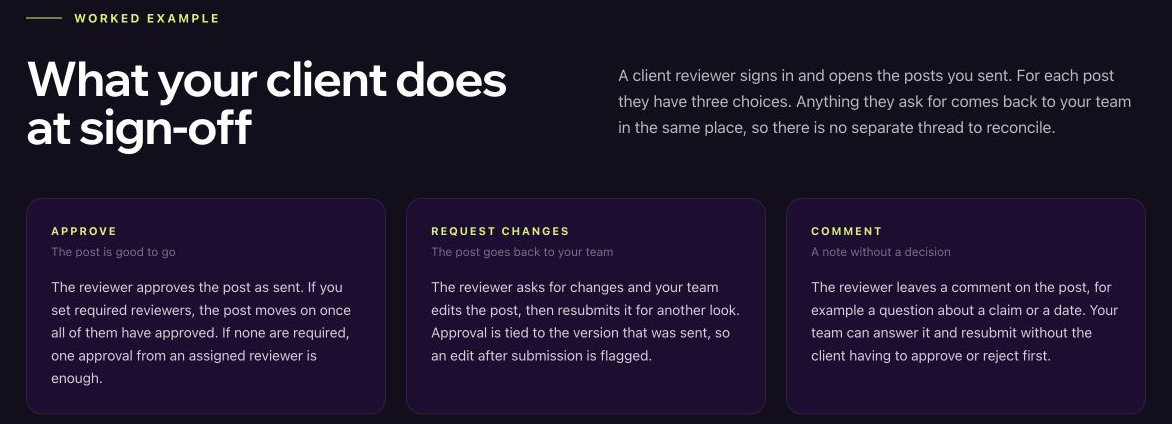
In the client review flow, a reviewer can approve the version they were sent, request a revision, or leave a comment.
Keep team approval and client sign-off distinct. Your team can check the draft first, then send the prepared version to the client. The client opens the review request and can approve, request a change, or ask a question in a comment. A comment leaves the decision open. A change request sends the work back to the team. When you materially revise a post after it was submitted, send the new version through the review flow so the client has the actual copy and media in front of them.
The review editor now gives reviewers more context while editing copy, including formatting and the platform character limit. If a revision calls for a different asset or a change outside the reviewer’s access, the team can make it in the composer and send the revised post back. Keep the conversation on the post so people joining later can see what changed.
Choose the time during final sign-off. On an eligible post, the reviewer completing sign-off can select Approve & schedule and choose a future time in the same step. If you require several reviewers, earlier reviewers can approve first. The option to choose the publishing time belongs to the approval that completes sign-off. A post waiting on an account connection needs that connection before it can be scheduled.
Imagine a client’s event reminder is due Thursday morning. Your agency sends the draft on Tuesday. The reviewer requests one wording change, your team edits it, and the updated version returns to the same review history. On Wednesday, the final reviewer approves the revised copy and chooses Thursday’s time. The card can then show whether the post is scheduled, has published, or needs the team’s attention after a failed send. Everyone can check the same record when the client asks what happened.
Decide who owns the next step. An approved post with no time may still need someone on your team to schedule it. A scheduled post already has a time. A published card can point you to the live post when a link is available. If a scheduled post fails to go out, check the published status and the affected account before asking the client to approve the same wording again. A change to the content belongs back in review. A delivery issue can usually start with the account or media that failed.
To use this on your next request, confirm who needs to sign off, send the right version, and tell the reviewer the window in which the post needs to go out. See Bolta’s client approval guide for adding reviewers and sending the first request.
ChatGPT Plugin
Bolta for Social Media is the app that connects ChatGPT to a Bolta workspace. You can use it to draft a post, ask what’s waiting for approval, and get a read on recent account performance. That makes it easier to start in a planning conversation and hand off a real draft to the rest of the team.
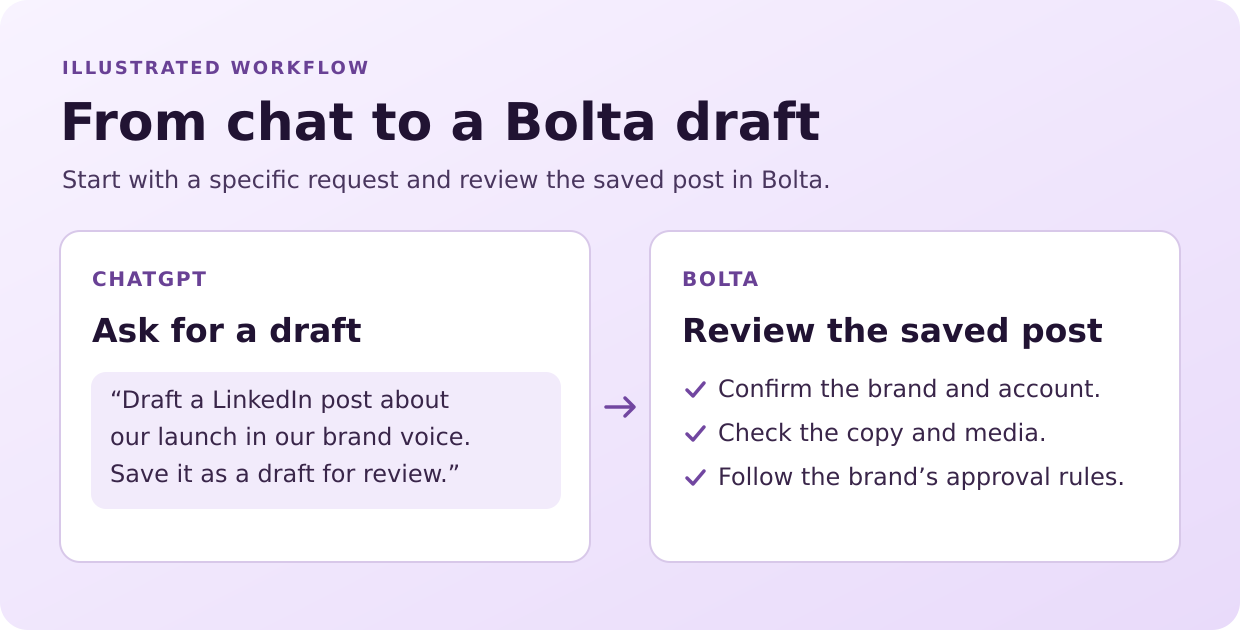
Example workflow using the existing ChatGPT connection. The saved post follows the brand’s review rules.
Connect the brand you want to work in. Find Bolta in ChatGPT’s app directory, sign in, and select the workspace or brands you want to connect. If you handle more than one brand, name the brand and destination account in your prompt. Use the brand’s saved voice when that’s the right starting point, and supply the facts that are specific to this post, such as an announcement date or a link.
Then try one of these requests:
- Prepare a post. “Draft one LinkedIn post for the product launch in our brand voice. Save it as a draft for review.” Include which account it should go to and what the launch actually includes.
- Check the queue. “Show me the posts waiting for my approval this week. Tell me the account and proposed time for each.”
- Look back. “Show engagement for our LinkedIn Page for the last seven days. Point me to the posts behind the change.”
After a draft is saved, review the brand, destination, copy, and any media. A request to draft can go through review before anyone schedules it. Approval and publishing actions depend on your role, the access granted to the app, and the brand’s rules, including any required client sign-off. Keep that in mind if you work across several brands with different policies.
If a request depends on an attachment or a specific destination, say so before asking to save. An instruction such as “use the LinkedIn company Page and leave it as a draft” makes the handoff clear. If the app shows the wrong brand or proposes a separate date, correct the request and review the saved version before it goes further. This is especially useful when your planning chat spans several clients or campaigns.
What we’re working on next. Dedicated Approvals and Calendar views inside ChatGPT are still being verified for release. The goal is to make review and scheduling easier to see alongside a conversation. The examples above use the existing connection. You can follow the ChatGPT integration guide to get started.
For your next content review, start with one account in Insights and identify a post worth learning from. Turn what you found into one new draft, then send that version through the review steps your brand actually uses. Follow the Bolta changelog for the running list of product changes.