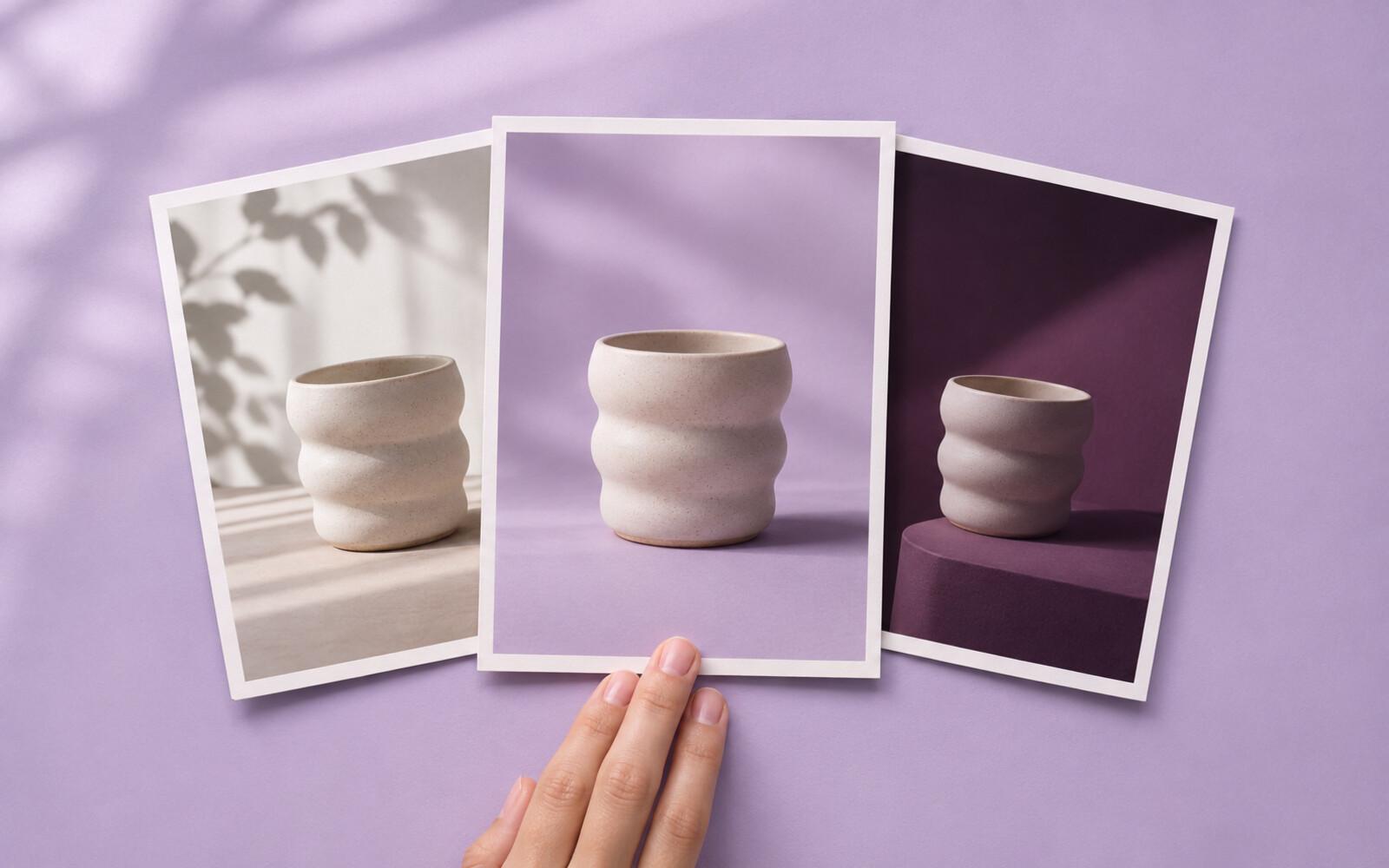
You’ve got a weekly routine that writes the posts you want. The images are another story. Some look too similar to last week’s, and the carousel you’re ready to send back has one slide with a headline that’s hard to read. Those are two different jobs. One belongs in the routine’s settings. The other belongs on the draft in front of you.
For the week of November 16–22, 2026, Bolta added two ways to work on those jobs. You can save more than one image look for an eligible routine, then adjust a single image while reviewing a draft. Here’s how to use both in the same workflow.
Save image looks for a recurring routine
An image look combines a reference image with a short description of what you want Bolta to take from it. The reference can show the lighting, the color palette, or how much room a composition leaves for text. The description tells Bolta which parts of that reference matter. Save more than one look and the routine can rotate between them as it creates new drafts.
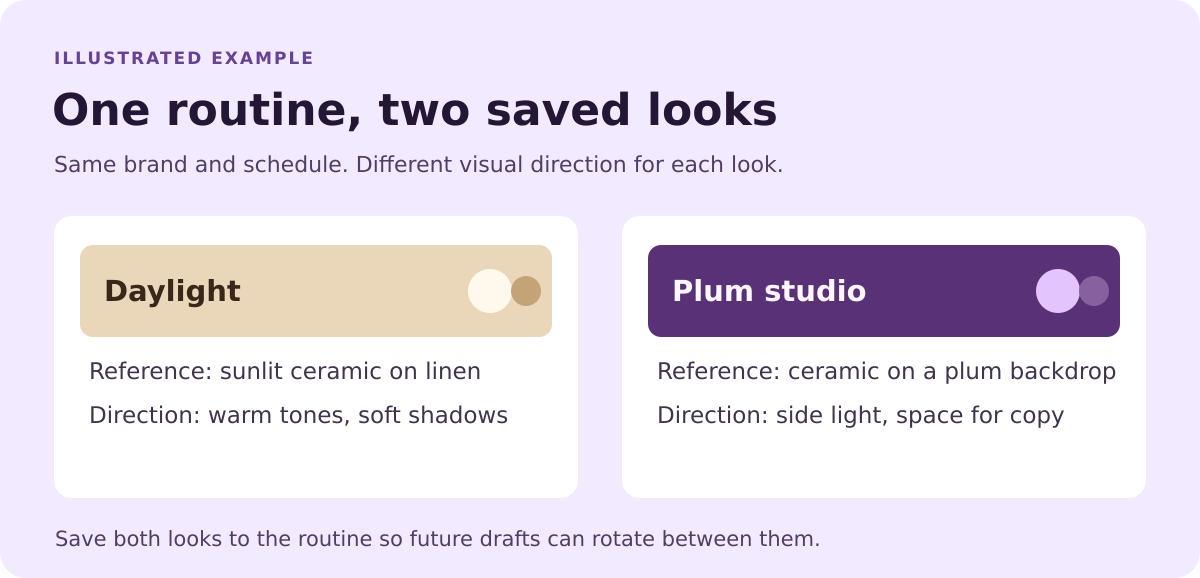
Illustrated example. The routine and publishing schedule stay the same as the visual direction varies.
Say you run a small ceramics shop and use a weekly routine to draft product tips. You might use a daylight reference for a relaxed feel and a plum backdrop for a more polished product shot. Both can make sense for the same brand. They give the routine different ways to frame a new idea without asking you to rebuild the schedule or choose a fresh reference every week.
To set this up, open Automations in Bolta, open the routine, and edit its visual settings. Look for Image variations on an eligible image or carousel setup.
- Choose Add look, then Choose reference image. Pick a reference you have permission to use from the brand’s library. If the routine already has a single reference, the editor can let you save it as your first look before adding another.
- Under Describe this look, tell Bolta what to carry forward. For the daylight look, try “Use warm daylight, a pale linen background, and soft shadows. Keep the composition simple and use a fresh arrangement for each post.”
- Choose Save look. Add a second reference with different direction, such as “Use a muted plum background and side lighting. Keep room for a short headline.” Then save the routine so the looks can be used on future runs.
- Review the next batch with both directions in mind. Check whether the lighting, color, and composition feel related to the brand and whether the image makes sense next to the specific caption.
For a supported carousel, Bolta uses one look across the deck. That gives the slides a common visual direction while each slide still has a job of its own. For example, a lead slide can introduce the product and a close-up can show a detail without needing an unrelated style for every frame. Look for Image variations in the routine you’re editing. Mixed-format configurations can have different controls.
If the editor offers Test look, paste sample post text and choose Get preview estimate. Review the credit amount before asking Bolta to generate the preview. The preview lets you inspect one example image. It doesn’t save the routine or create a post. You can also save a look directly and see how it works in your next set of drafts.
Use references for visual direction. If the real product’s shape, packaging, label, or logo must appear exactly as it does in your catalog, use an approved asset for that part of the post. A generated image still needs a review for details you intend to publish.
Revise one image while reviewing a draft
The images in a thread or carousel often go through review at different speeds. Your opening image might be ready while slide two needs a shorter headline or a clearer crop. In Approvals, you can select the image that needs work, preview a change, and apply it to that attachment. The other images, captions, and slide or thread order stay in place.
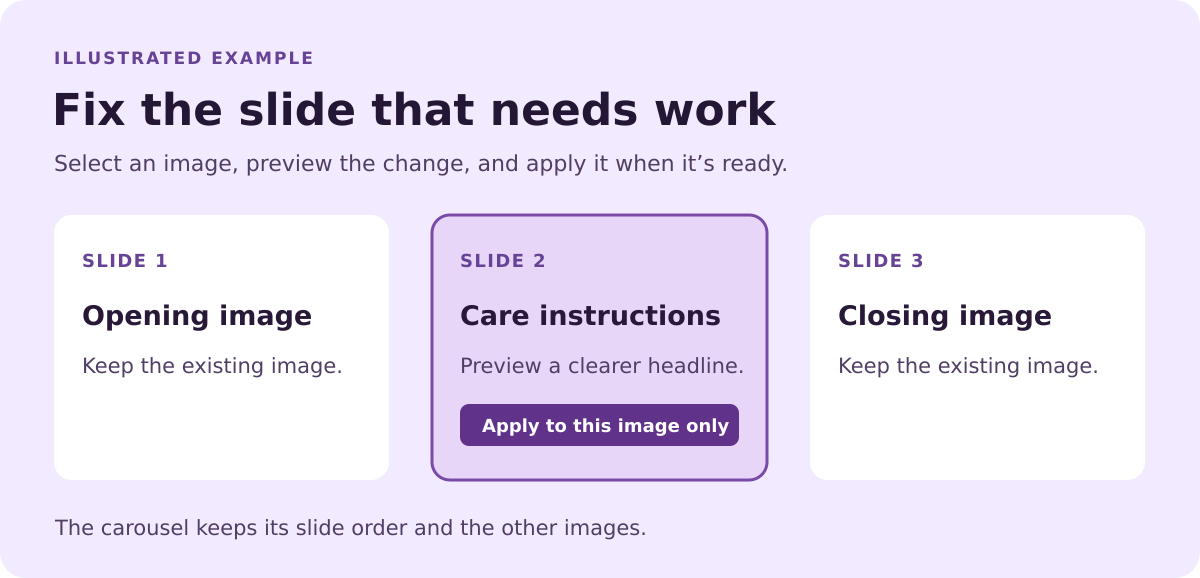
Illustrated example. Changing the second image keeps the other slides and their order.
Take a three-slide carousel about caring for a handmade cup. Slide one introduces the cup. Slide two has care instructions, but the headline competes with the illustration. Slide three has the closing image and is ready. You can shorten the second slide’s headline and keep the rest of the draft as it is.
- Open the draft in Approvals and move to the image, carousel slide, or thread attachment you want to revise.
- Choose Edit image prompt if it’s available for the selected image. State the change and the part of the original you want to keep. For example, “Use the same cup and plum background. Move the cup toward the lower right and leave room for a headline above it.”
- If the image editor offers a headline override for that carousel slide, enter the exact words you’d like rendered. For the example above, try “Care for your cup” and inspect the preview for spelling, contrast, and legibility. The override changes the rendered image. The original slide direction stays available as context.
- Choose Regenerate preview, review the result, and apply it if it’s ready. Then read the full post once more so the new image, its neighbors, and the caption still tell the same story. Complete any review the final version requires.
A visual fix in Approvals is for the draft you’re reviewing. If the same problem returns in several drafts, edit the routine’s saved look as well. For example, a one-off headline can be corrected on the slide. If every headline feels cramped, update the routine’s direction to leave consistent space for text. That gives the next run a better starting point.
Try it on a routine you already use. Save two looks with distinct references, then open your next batch and choose one image to review in context. For the release note and other changes, see the November 18 changelog entry.